
Linking WingMDM to your Apple ID
To start managing devices, you’ll first need to register your WingMDM installation with an Apple ID you manage.
This can be any Apple ID, and does not need to match your WingMDM login or the Apple ID on your devices.
We recommend using an AVIT-specific Apple ID that is separate to the Apple ID used for the iPads, so that login attempts do not trigger notifications on the iPads in guest areas.
This step needs to be repeated yearly, so the Apple ID should be one associated with the yacht and not any personal Apple IDs.
Registration
Section titled “Registration”Apple ID registration is managed from the ‘Devices page’ on WingMDM.
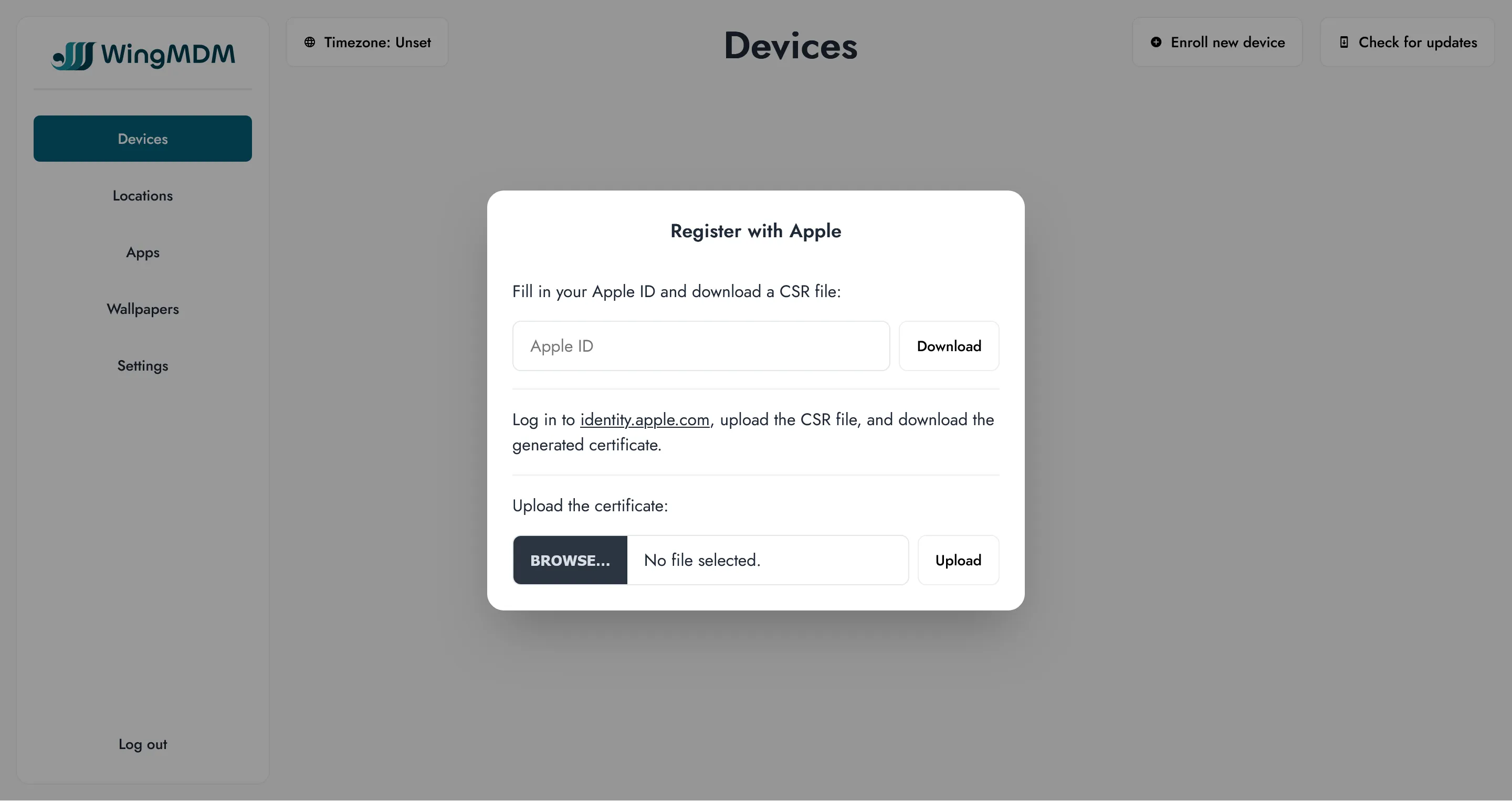
Generate a Signing Request (CSR)
Section titled “Generate a Signing Request (CSR)”-
Go to the ‘devices’ view on your dashboard
-
Select ‘Enroll new device’.
-
Type in your Apple ID and select ‘Download’.
This will download a WingMDM_CSR.plist file to your desktop.
If you decide to use a different Apple ID before continuing, you can delete the WingMDM_CSR.plist
and repeat these steps with a different email address.
Upload CSR to Apple and download the certificate
Section titled “Upload CSR to Apple and download the certificate”-
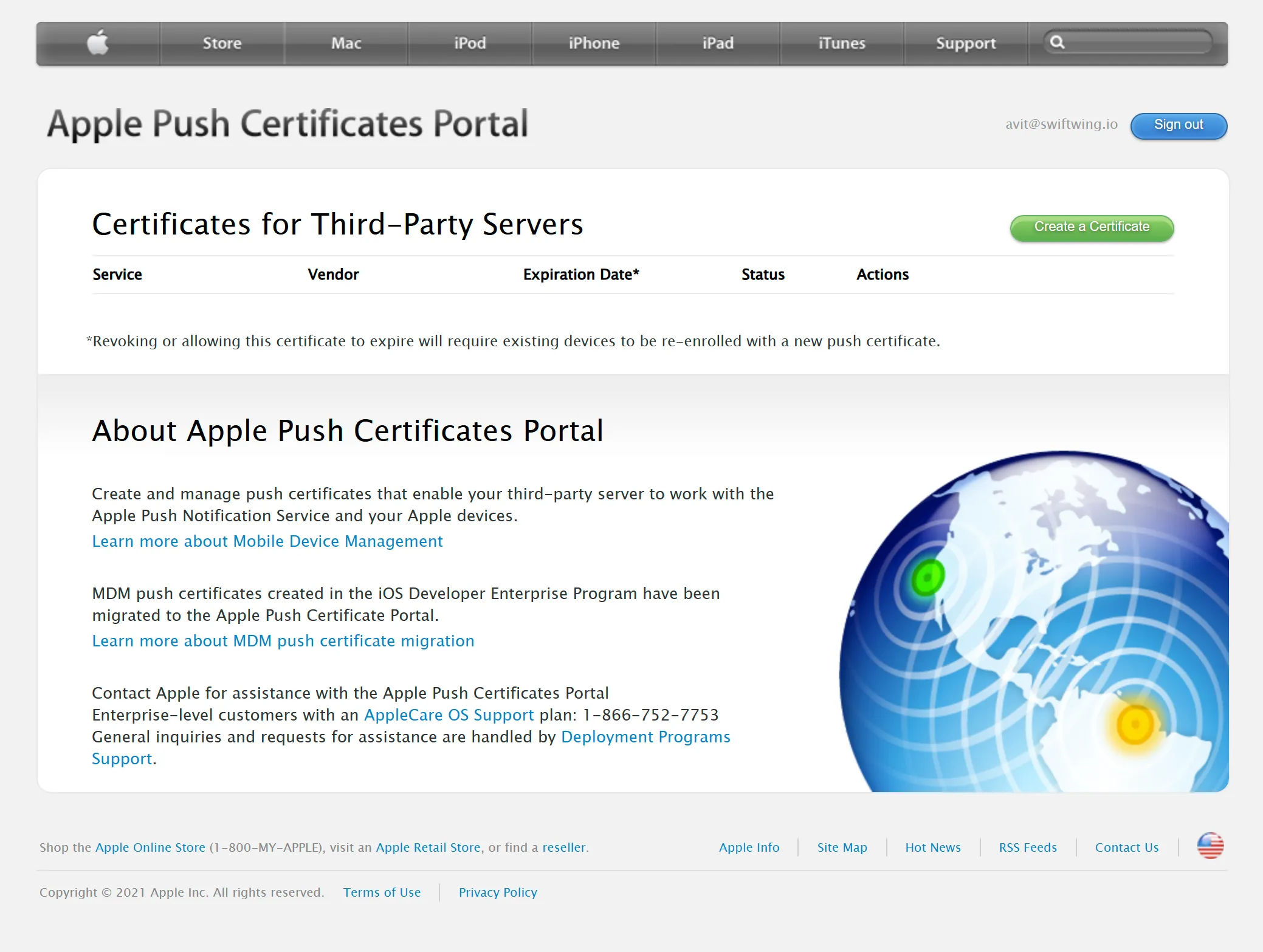
Log in to identity.apple.com with your Apple ID.
-
Select “Create a certificate”
-
Select “Browse…” to pick the
WingMDM_CSR.plistyou downloaded from WingMDM. -
Download the generated file. This will be named something like
MDM_ Swiftwing Technology Ltd._Certificate.pem.
Upload to WingMDM
Section titled “Upload to WingMDM”-
Go back to the ‘Enroll new device’ view
-
Select the certificate you downloaded from Apple.
-
Select ‘Upload’
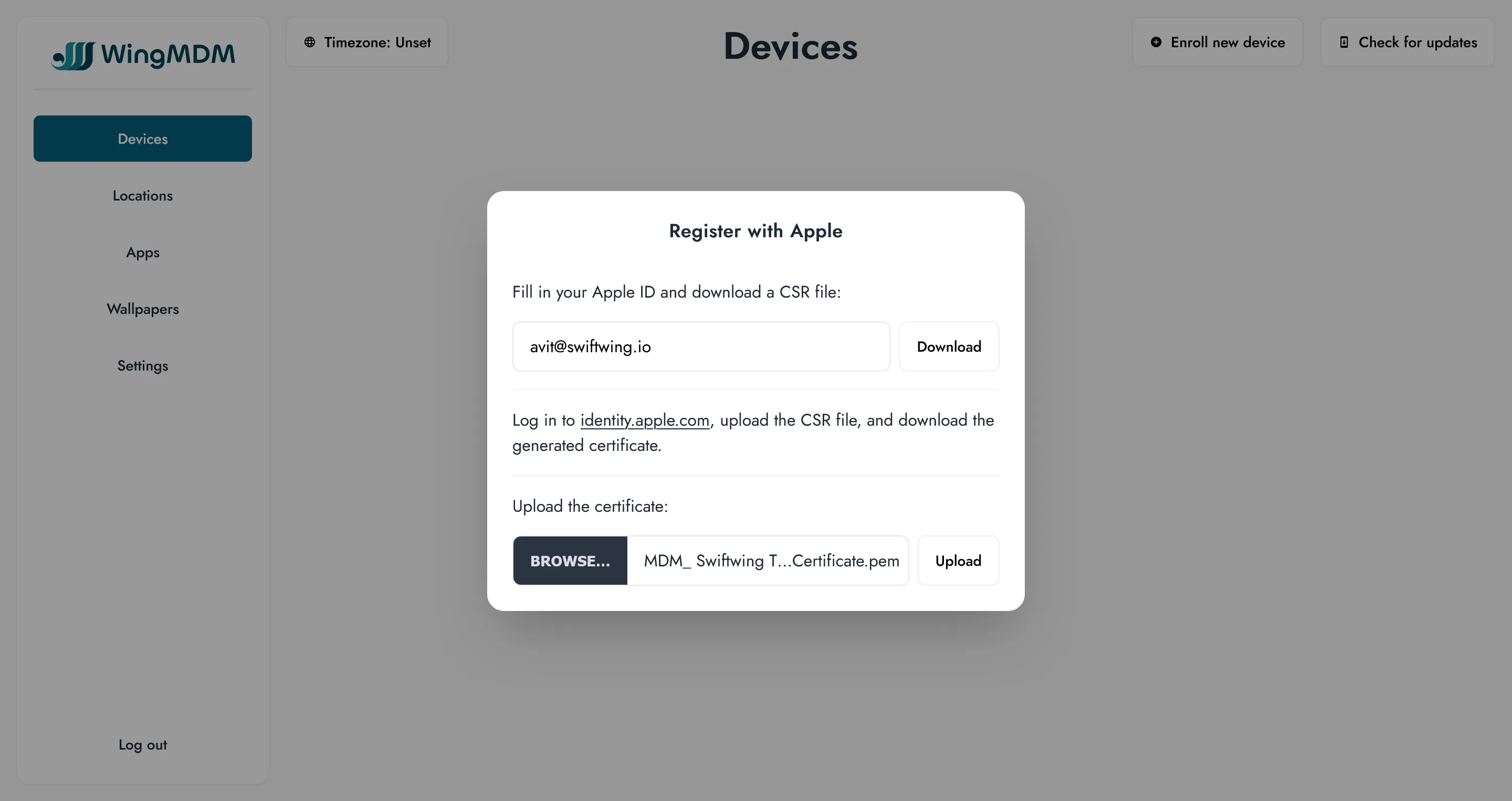
Once this process has been completed, the registration form will be replaced by a QR code, allowing you to start enrolling devices.