
Wallpapers
Introduction
Section titled “Introduction”Custom wallpapers are an easy way for guests and crew to identify an iPad’s purpose.
By associating a wallpaper with a location, you can make sure wallpapers are updated alongside the rest of an iPad’s properties as it is deployed or moved around.
Considerations
Section titled “Considerations”The ideal wallpaper size for a given iPad is a square matching the longest pixel edge on that iPad. As the iPad is rotated the wallpaper will be cropped in either direction to match the iPad’s screen.
For example, a 6th generation iPad mini has a screen resolution of 2266×1488 px. A 2266x2266px is ideal for this iPad.
If you have any critical elements in the background such as text or logos, make sure they are in the middle 1488x1488px square so they are always visible.
Uploading wallpapers
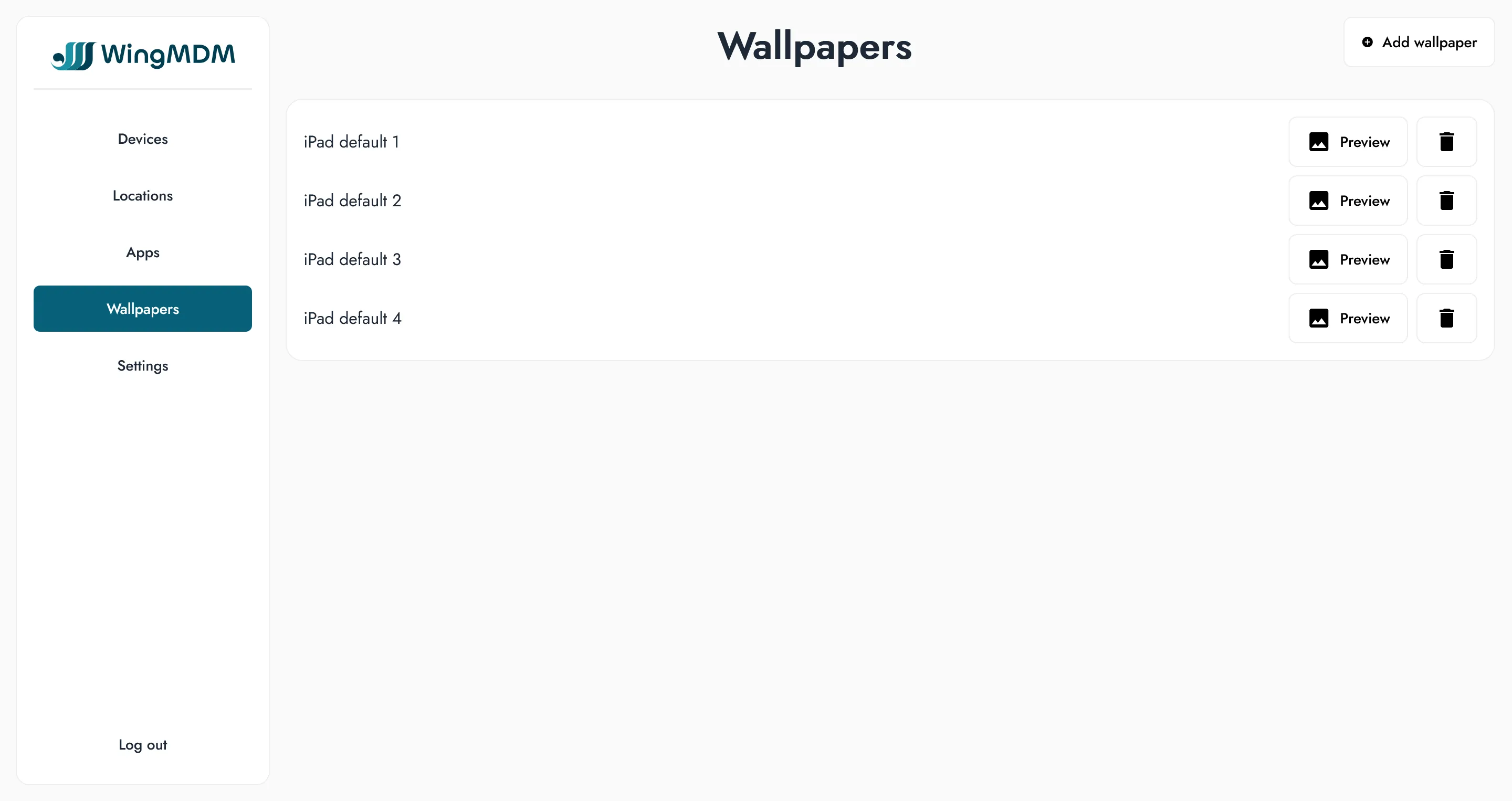
Section titled “Uploading wallpapers”You can upload one or more wallpapers by going to the ‘Wallpapers’ view, selecting ‘Add wallpaper’, and browsing to your files. You can select as many wallpapers as you like, then select the ‘save’ button to upload them.
Uploaded wallpapers will be labeled by their filename, so make sure the filenames are descriptive enough to identify. To change a name you rename the file, then delete and reupload the wallpaper on WingMDM.
WingMDM comes with standard default iPad wallpapers for testing, which you may delete and replace with your own.
Assigning wallpapers
Section titled “Assigning wallpapers”To assign a wallpaper, go to the ‘locations’ view, and go to the wallpaper column for the location you’d like to assign. Select the edit button, and choose your desired wallpaper from the dropdown list.
For convenience, you can also a wallpaper for that device directly from the dropdown menu, if you haven’t already. Select the edit button, then from the dropdown select ‘browse’ and pick your wallpaper. The wallpaper will be uploaded and automatically assigned to that device.
Applying wallpapers
Section titled “Applying wallpapers”Once a wallpaper is set to a location, the change will be queued up on any devices assigned to that location. To proceed with an iPad, go to the ‘Pending’ tab in the ‘Devices’ page and click ‘Apply Changes’.