
Preparing iPads for registration
Device supervision
Section titled “Device supervision”Most useful MDM features require the enrolled iPad to be ‘supervised’.
You can read more about device supervision at About Apple device supervision.
This step is independent of your choice of MDM solution, and you can swap between MDM solutions without having to change the device supervision.
When an iPad is ‘supervised’, the Settings app shows a message like “This iPad is supervised and managed by [Organization name].
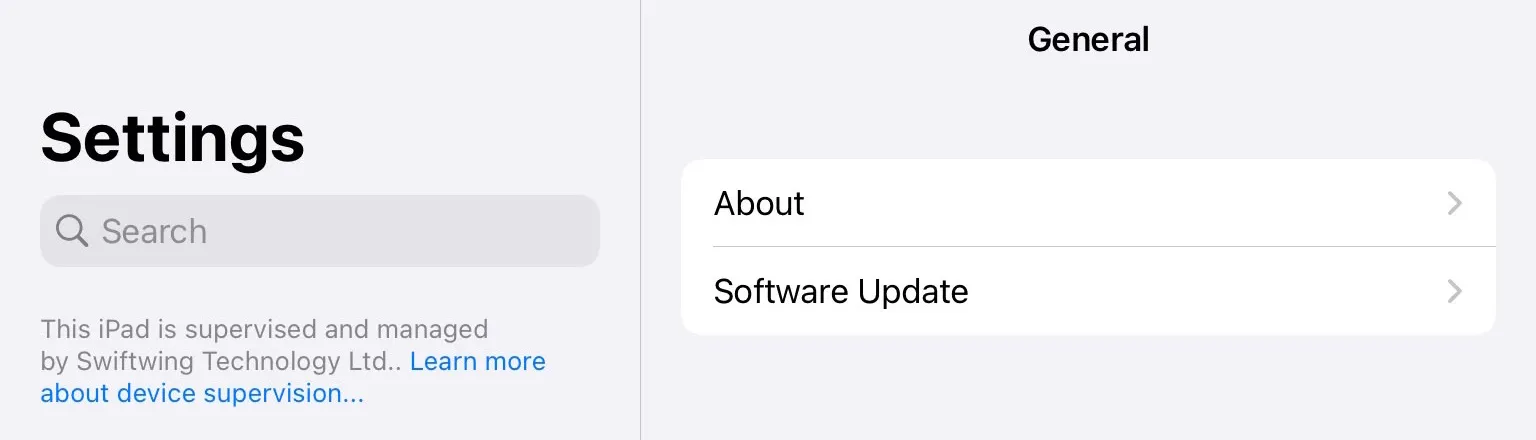
This does not need to show Swiftwing Technology - it will show a name chosen by you during the supervision process.
If your iPad already shows this (regardless of what name is shown), your device is already supervised and you can skip to Enrolling devices.
Non-supervised devices
Section titled “Non-supervised devices”If you enroll a device that isn’t ‘supervised’, it will still register successfully, however WingMDM won’t be able to push config to it. WingMDM will show a status for the device indicating that is the case.
Enabling supervision will wipe the device, once you have completed the process you can re-enroll it which will update the status in WingMDM.
In general it is more efficient to supervise your device first, then enroll it in WingMDM.
Supervising your devices
Section titled “Supervising your devices”iPads may be supervised either automatically or manually:
- Automatically through Automated Device Enrollement, via Apple Business Manager (ABM)
- Manually using a Windows or Mac device
Supervision can be performed with a MacOS device using the Apple’s own Apple Configurator app, or alternatively with iMazing on Windows:
- For Apple Configurator, see here: Prepare an iPhone, iPad, or Apple TV manually in Apple Configurator
- For iMazing, see here: Supervise iPhone, iPad and iPod touch
During this process, you may be asked if you want to enroll in an MDM solution. You do not need to do this at this stage, this will be covered in Enrolling devices at a later step.
This step only needs to be done once per device, regardless of the number of times you enroll and un-enroll that device from MDM.