
Locations
Introduction
Section titled “Introduction”‘Locations’ are at the core of WingMDM’s unique model.
Instead of selecting config for individual devices, or building up groups of common config based on different properties, all config is applied to a location, and then a device (or more than one device) is assigned to that location.
Only properties that directly relate to a device, such as software updates and ‘locked’ status, are managed on a per-device basis.
To start setting config for your devices, you will need to define locations that devices will be assigned to.
Locations allow you to assign apps, wallpapers and settings according to area, so that devices can be swapped around or replaced as necessary. When an iPad is assigned to a different location, its wallpaper will be updated to match.
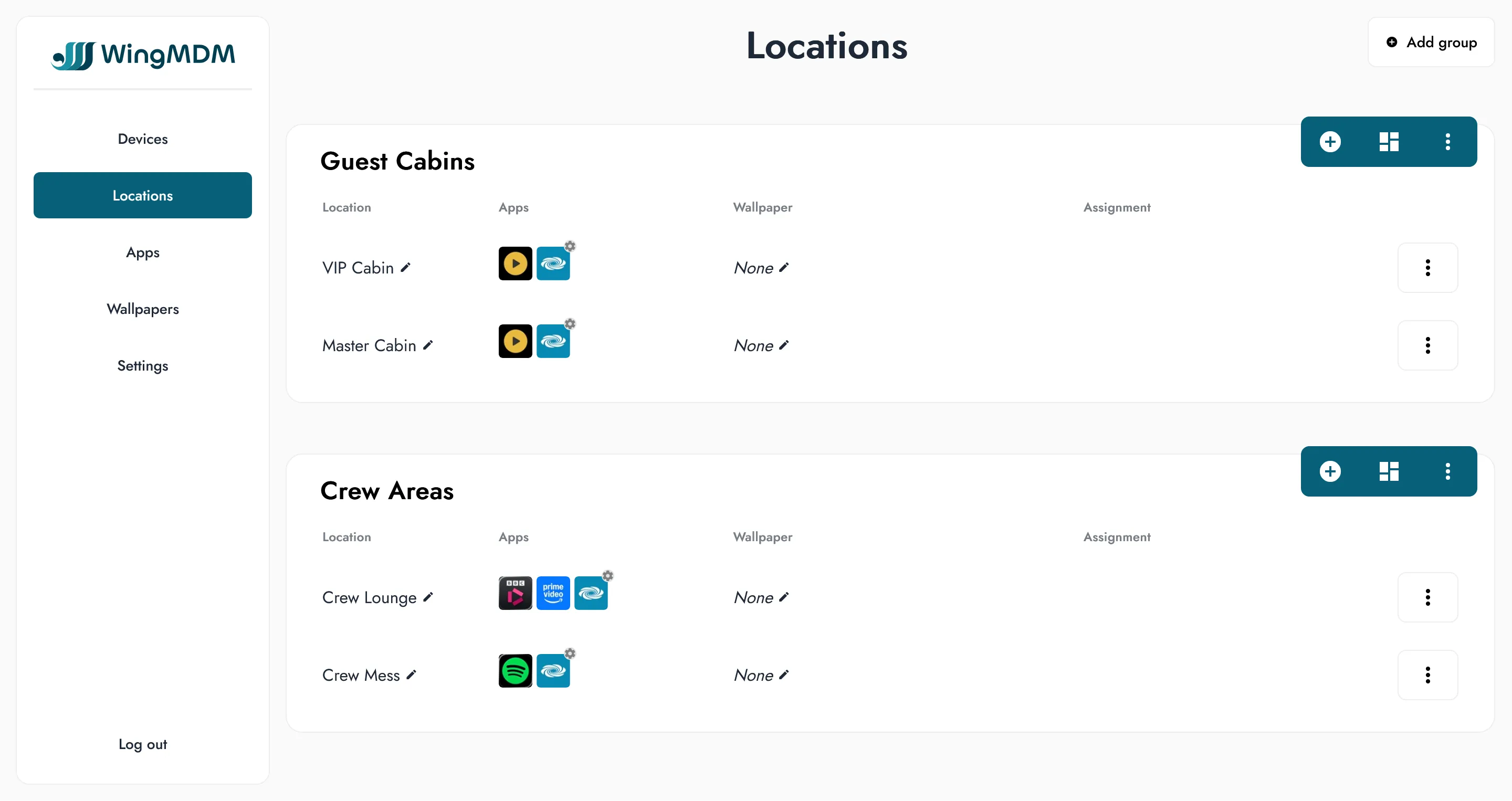
Locations can be grouped by function. For example, you might have a group called ‘Guest Crestron’ for iPads set up in guest areas, and another called ‘Office iPad’ for iPads used in the bridge and engineering departments.
If you don’t need to use groups, you can use the default group Default that is
automatically created. Alternatively, you can choose to create other groups and
delete the Default group.
Procedure
Section titled “Procedure”To create a group, select the ‘Add group’ button and type in an appropriate name.
To create a location, on group heading select ‘Add’, then choose an appropriate name and select ‘Save’.
In general, one location will correspond to one iPad. However, you can also assign multiple iPads to a single location if they are to be configured exactly identically.