
Devices
Introduction
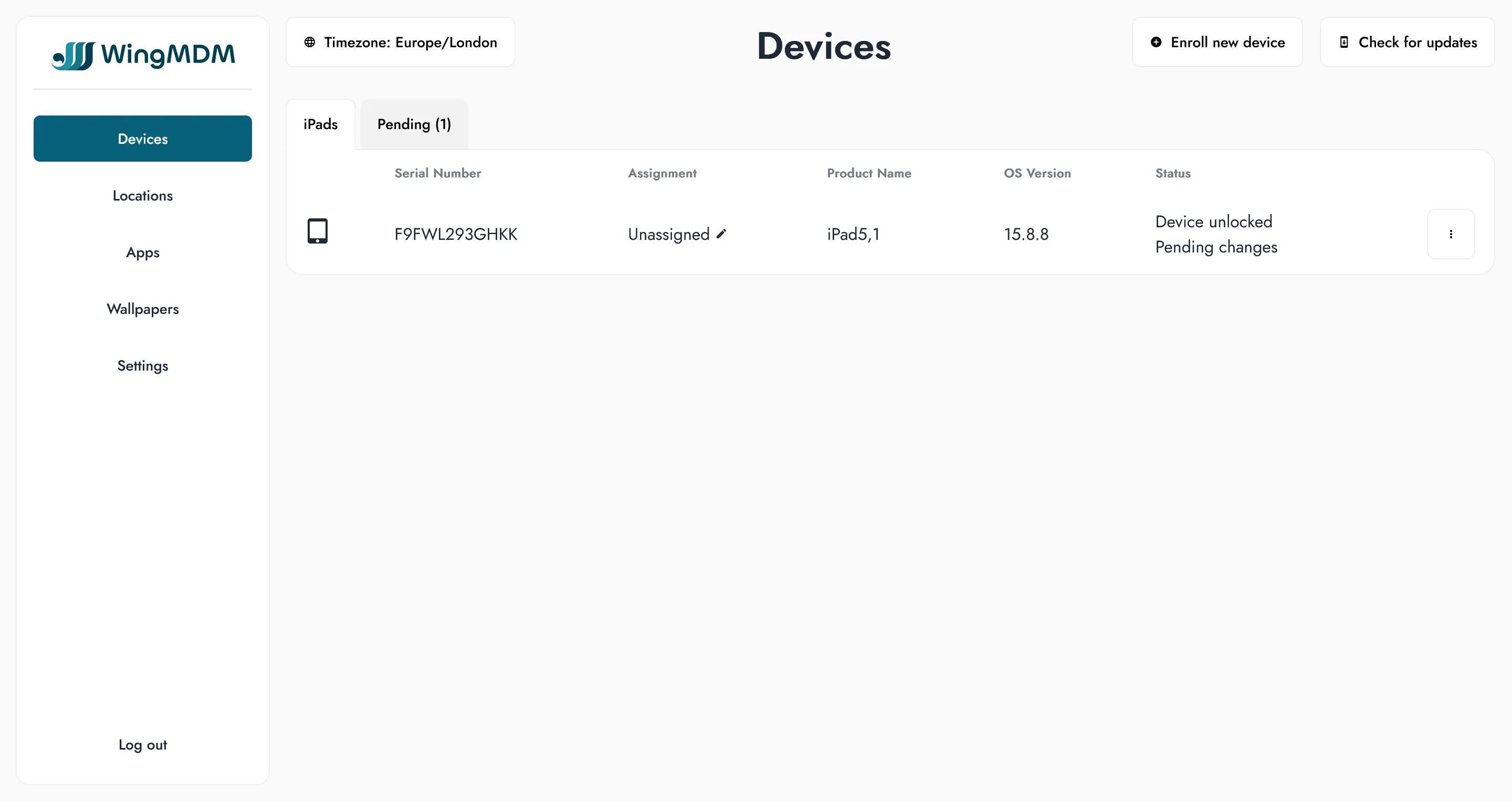
Section titled “Introduction”The status page shows the state of all your registered devices, and allows you to push out changes to those devices.
Pending changes
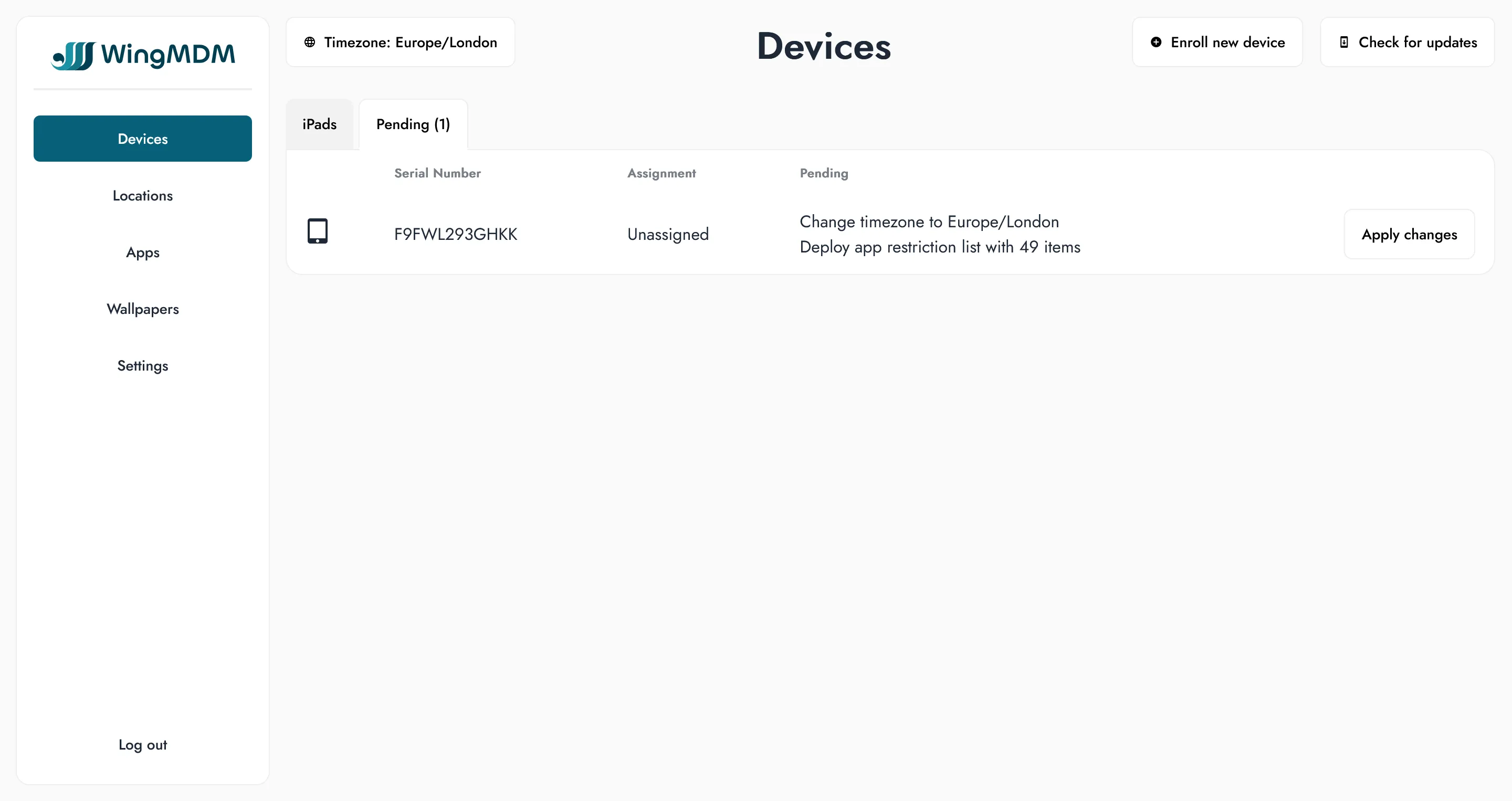
Section titled “Pending changes”WingMDM will never make changes without your explicit direction. This allows you to line up your changes when there’s no risk of them impacting a guest experience.
When a device is assigned to a new location, or when properties of a location are updated, those changes are lined up against the device.
Pending changes are shown in the ‘pending’ tab of the Devices page, and can be applied by pressing ‘Appy changes’.
Device locking
Section titled “Device locking”Device ‘locking’ is a WingMDM concept. When the device is ‘locked’, the layout is set according to that location (see Locations), and the App Store is hidden. This avoids any apps being added or removed from the iPad during general use.
All iPads start in an ‘unlocked’ state, and can be locked down once you’re happy with their configuration, before putting them out in their respective areas.
In some scenarios you may need to ‘unlock’ the device. This releases the app layout, and re-enables the App Store. This allows you to quickly install and configure apps if you need to solve a problem quickly.
When the device is locked again, any manually installed apps will remain available, in an ‘unmanaged’ state. If that app is later set through WingMDM, WingMDM will take over management of that app.
Device locking is managed through the drop-down at the end of the row. When unlocked, the device will show a ‘Device unlocked’ status.
Timezones
Section titled “Timezones”The most common iPad configuration change on many yachts is the need to roll out a timezone change as the yacht moves between different waters.
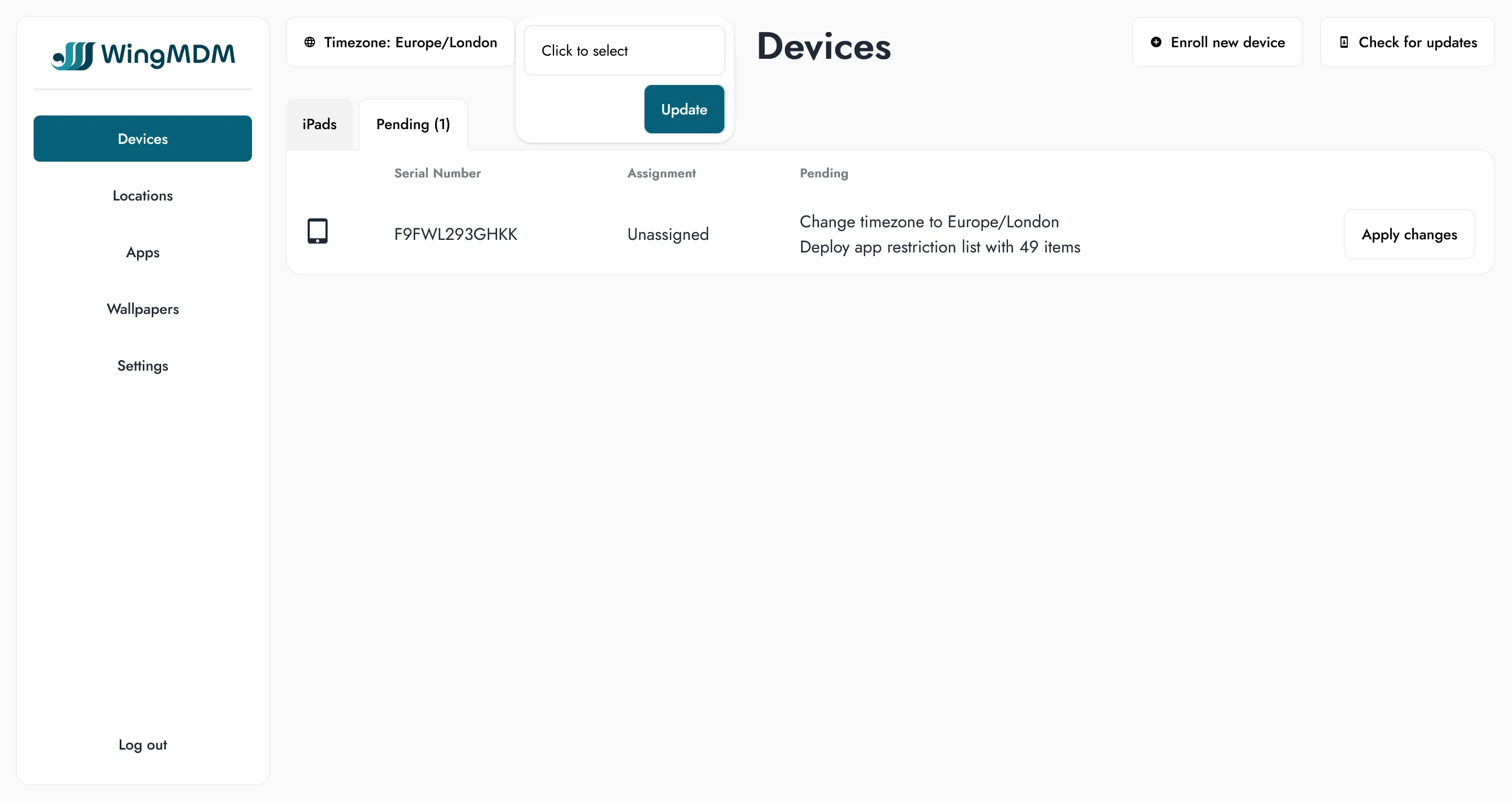
The current timezone can be set from the top-left button of the ‘Devices’ page, and will be queued up on all managed iPads.
By default all available timezones will be listed. You can set common timezones for your yacht in the Settings page (see Settings), in which case only those timezones will be listed.
Software updates
Section titled “Software updates”A check for software updates can be triggered by pressing the ‘check for updates’ button.
Any devices with available updates will show an updated status, and the dropdown on that row will gain an ‘Update to X.Y.Z’ button.
Selecting the button from the dropdown will immediately trigger an update. WingMDM will periodically check the status and show progress updates in the status column.