Linking iPads to WingMDM
Introduction
Section titled “Introduction”Enrolling your device with WingMDM registers it with WingMDM and allows WingMDM to manage it remotely.
This requires downloading an enrollment profile to the device and accepting it from the settings app to enroll it.
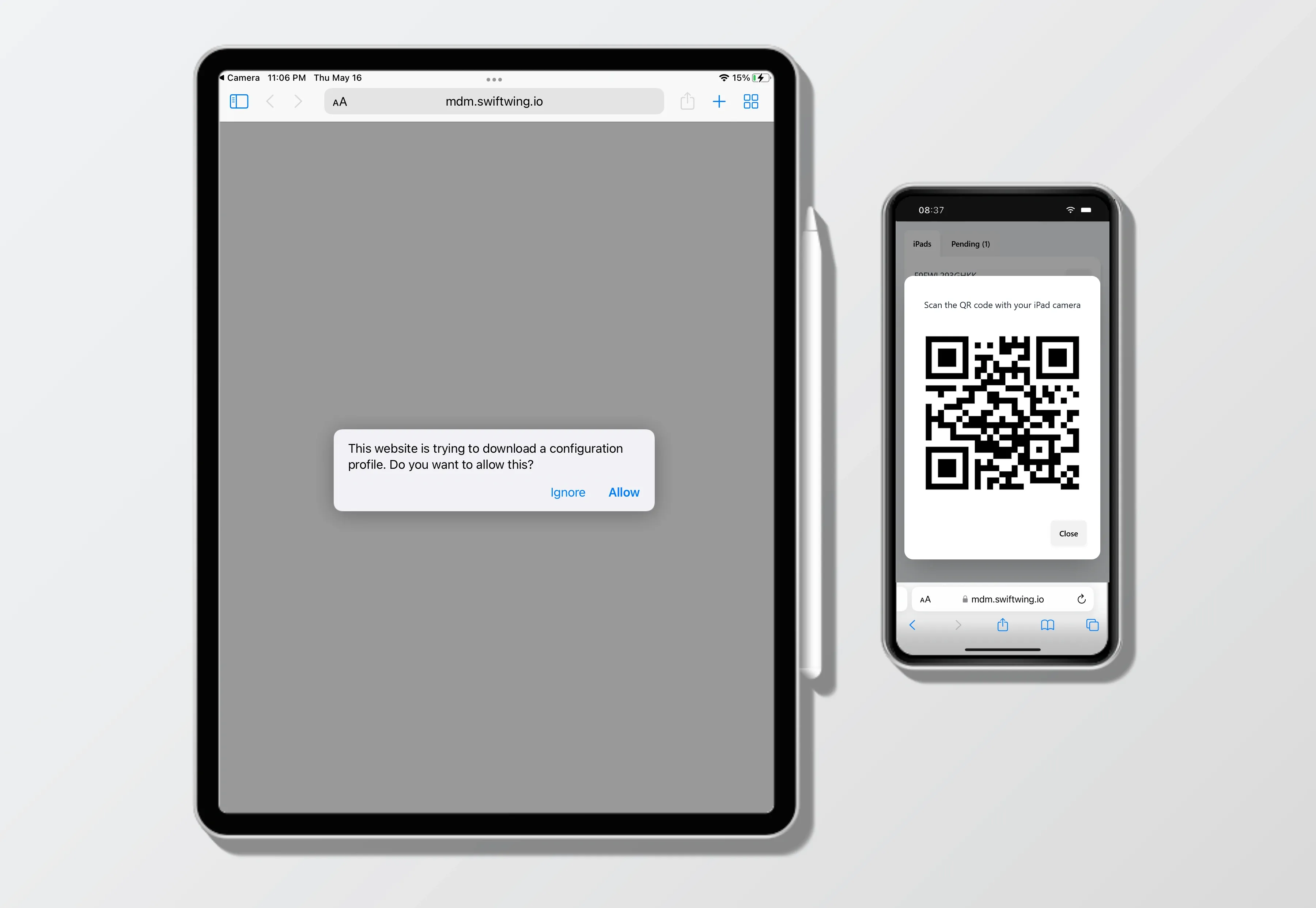
WingMDM provides and convenient QR code with a built-in authentication code that can be scanned from the iPads for quick and seamless onboarding.
Once you’ve ensured your device is supervised (see Preparing iPads for registration), you can go ahead with enrolling it in WingMDM:
-
Log into WingMDM from any mobile or desktop device. A mobile device can be useful for enrolling on the go.
-
Ensure the iPad you want to link has an active internet connection.
-
From the ‘Devices’ page on WingMDM, select the ‘enroll new device’ button. This will bring up a QR code that you can use for enrollment.
-
Open up the camera app on the iPad and scan the QR code. This will give you the option to open the link in Safari and download the enrollment profile.
-
Once the enrollment profile has been downloaded, open the Settings app and accept the installation.
Once the installation has been accepted, the device will register with WingMDM and will automatically show up on the WingMDM devices page.